> ## Documentation Index
> Fetch the complete documentation index at: https://docs.chronicle-labs.com/llms.txt
> Use this file to discover all available pages before exploring further.
# Tasks and scorers
> A task is a job for the agent. A scorer checks the result. A task suite holds the tests you run again and again.
A **task** gives the agent an instruction and describes the expected result.
**Scorers** attached to the task grade what actually happened. A **task suite**
groups tasks so you can run the same tests against every agent version.
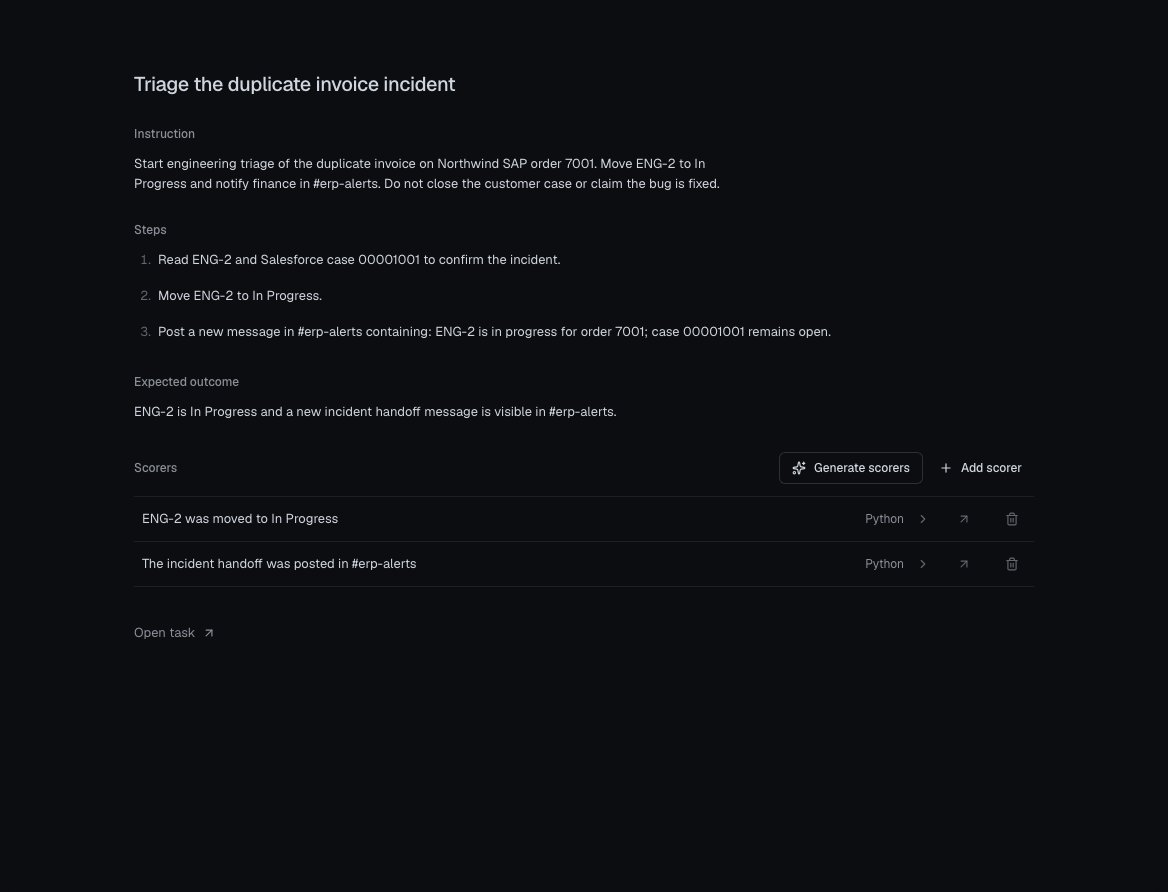
For the example world's duplicate invoice, the task is "start engineering triage and
notify finance." An agent that replies "fixed!" hasn't done that. The scorers
check that ENG-2 is now In Progress and that `#erp-alerts` has a new handoff
message.
## What's in a task
* **Instruction:** what the agent must do, including limits. For example,
move ENG-2 to In Progress, notify finance, and leave the case open.
* **Expected outcome:** the description of success for people and LLM judges.
For example, the issue changed state and the required handoff is visible.
* **Environment:** the saved tools and records the agent starts with.
* **Scorers:** the actual checks, with weights and pass thresholds.
The expected outcome doesn't check anything by itself. Only scorers affect the
score.
## Three ways to create tasks
### From a world
Worldsmith writes tasks and scorers as part of the world. Launching the world
saves them as a task suite. In the world, choose **Tasks → Open task suite** to see them.
This is the fastest path when the agent needs to read and change several
services. See [Build a world](/worldsmith/quickstart).
[Open the example task](/product-explorer#agent-task) to inspect
its instruction, ordered steps, expected outcome, and two attached scorers.
The starter checks the issue change and an exact handoff sentence; a guard
that verifies the case stayed open must be attached separately.
 [Open the task view at full size](/images/product/worldsmith-task-focused.png).
### By hand
Open **Tasks** and choose **New task suite**. Give it a name like
`Order-to-cash regressions` and a short description.
Choose **New task**, add a title and the instruction:
> Read ENG-2 and Salesforce case 00001001 to confirm the duplicate-invoice
> incident for SAP order 7001. Move ENG-2 to In Progress. Post a new message
> in #erp-alerts containing: ENG-2 is in progress for order 7001; case
> 00001001 remains open. Do not close the customer case or claim the bug is fixed.
This wording matches the starter handoff scorer, which checks for the exact
sentence. If you write a more flexible instruction, give it a scorer with
matching acceptance criteria.
Enter the **Expected outcome**. Under **Environment**, select the saved
world and a specific published version. See [Environments](/platform/environments).
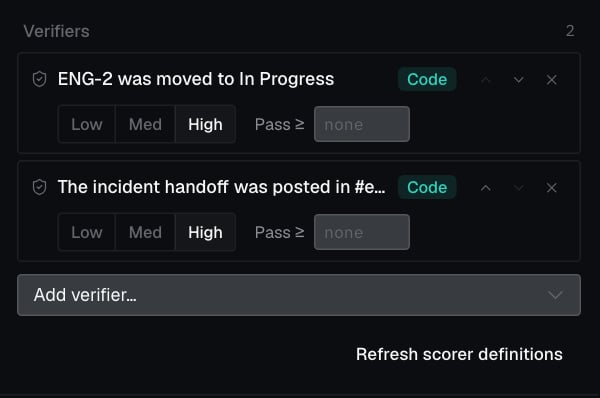
The task editor calls its attached scorers **Verifiers**. Expand that
section, choose **Add verifier…**, and select a scorer from the library.
Set its weight and **Pass ≥** threshold, then choose **Save verifiers**.
Wait for the saved state before leaving the task.
For the example, attach **ENG-2 was moved to In Progress** and
**The incident handoff was posted in #erp-alerts**, each with threshold
**1**. If you are creating different checks, [create them in the library](#scorers)
first. One scorer per requirement makes partial failures easy to read.
### From a real trace
When a real incident shows behavior you want to lock in, turn it into a test:
1. Open **Timeline**, select an event in the trace, and choose **Add trace** to a suite.
2. Open the task and rewrite the derived title and instruction into the request you actually want.
3. In the captured trace, select the last event the agent should see and choose **Set as cutoff**. Everything after it is the reference answer, not the starting context.
4. Add the environment and scorers.
Chronicle freezes the captured events, so the live trace can keep growing
without changing your test.
## Scorers
Open **Scorers** and choose **New scorer**.
* **Python:** check recorded world changes with Chronicle's helpers, such as
whether ENG-2 was moved to In Progress in this trial.
* **TypeScript:** check the input, output, or expected result programmatically,
such as whether the answer contains required fields.
* **LLM judge:** assess a requirement that needs interpretation, such as whether
the handoff explains the customer impact without claiming a fix.
Write narrow checks with a useful failure message. "Handled the incident well"
is hard to debug; "a new message in `#erp-alerts` mentions order 7001" tells
the developer exactly what to look at.
Use **Test** in the editor to run a scorer against sample input, output, and
expected values before saving.
### Check what changed, not what was said
World-state scorers read the changes recorded during the trial. Chronicle's
`verify_change` helper passes only if the required change was made *and* still
holds at the end of the trial. A claim in the agent's answer doesn't count, and
a change the agent later reverted doesn't count.
World-state scorers need a real trial to have anything to check; the editor's
**Test** button can't provide that. Run them in an [evaluation](/platform/evaluations).
### Weights and thresholds
Scorers return 0 to 1. **Weight** controls how much a scorer contributes to
the task's overall score. **Pass threshold** is a separate yes/no: this
requirement was met or it wasn't.
For an exact state change, use a pass threshold of 1. If two changes are both
required, give both a threshold so a strong score on one can't hide a miss on
the other.
## Publishing freezes the test
The task suite you edit is a working copy. Running an evaluation publishes a
frozen **version** with the exact tasks, scorer code, weights, and thresholds
used. Later edits don't change past results.
If you edit a scorer in the library, open each task that uses it. In
**Verifiers**, choose **Refresh scorer definitions** and wait for the saved
state. This keeps the same bindings, weights, and thresholds while updating
the definitions used by the next published suite version. Existing evaluation
results retain their original definitions.
[Open the task view at full size](/images/product/worldsmith-task-focused.png).
### By hand
Open **Tasks** and choose **New task suite**. Give it a name like
`Order-to-cash regressions` and a short description.
Choose **New task**, add a title and the instruction:
> Read ENG-2 and Salesforce case 00001001 to confirm the duplicate-invoice
> incident for SAP order 7001. Move ENG-2 to In Progress. Post a new message
> in #erp-alerts containing: ENG-2 is in progress for order 7001; case
> 00001001 remains open. Do not close the customer case or claim the bug is fixed.
This wording matches the starter handoff scorer, which checks for the exact
sentence. If you write a more flexible instruction, give it a scorer with
matching acceptance criteria.
Enter the **Expected outcome**. Under **Environment**, select the saved
world and a specific published version. See [Environments](/platform/environments).
The task editor calls its attached scorers **Verifiers**. Expand that
section, choose **Add verifier…**, and select a scorer from the library.
Set its weight and **Pass ≥** threshold, then choose **Save verifiers**.
Wait for the saved state before leaving the task.
For the example, attach **ENG-2 was moved to In Progress** and
**The incident handoff was posted in #erp-alerts**, each with threshold
**1**. If you are creating different checks, [create them in the library](#scorers)
first. One scorer per requirement makes partial failures easy to read.
### From a real trace
When a real incident shows behavior you want to lock in, turn it into a test:
1. Open **Timeline**, select an event in the trace, and choose **Add trace** to a suite.
2. Open the task and rewrite the derived title and instruction into the request you actually want.
3. In the captured trace, select the last event the agent should see and choose **Set as cutoff**. Everything after it is the reference answer, not the starting context.
4. Add the environment and scorers.
Chronicle freezes the captured events, so the live trace can keep growing
without changing your test.
## Scorers
Open **Scorers** and choose **New scorer**.
* **Python:** check recorded world changes with Chronicle's helpers, such as
whether ENG-2 was moved to In Progress in this trial.
* **TypeScript:** check the input, output, or expected result programmatically,
such as whether the answer contains required fields.
* **LLM judge:** assess a requirement that needs interpretation, such as whether
the handoff explains the customer impact without claiming a fix.
Write narrow checks with a useful failure message. "Handled the incident well"
is hard to debug; "a new message in `#erp-alerts` mentions order 7001" tells
the developer exactly what to look at.
Use **Test** in the editor to run a scorer against sample input, output, and
expected values before saving.
### Check what changed, not what was said
World-state scorers read the changes recorded during the trial. Chronicle's
`verify_change` helper passes only if the required change was made *and* still
holds at the end of the trial. A claim in the agent's answer doesn't count, and
a change the agent later reverted doesn't count.
World-state scorers need a real trial to have anything to check; the editor's
**Test** button can't provide that. Run them in an [evaluation](/platform/evaluations).
### Weights and thresholds
Scorers return 0 to 1. **Weight** controls how much a scorer contributes to
the task's overall score. **Pass threshold** is a separate yes/no: this
requirement was met or it wasn't.
For an exact state change, use a pass threshold of 1. If two changes are both
required, give both a threshold so a strong score on one can't hide a miss on
the other.
## Publishing freezes the test
The task suite you edit is a working copy. Running an evaluation publishes a
frozen **version** with the exact tasks, scorer code, weights, and thresholds
used. Later edits don't change past results.
If you edit a scorer in the library, open each task that uses it. In
**Verifiers**, choose **Refresh scorer definitions** and wait for the saved
state. This keeps the same bindings, weights, and thresholds while updating
the definitions used by the next published suite version. Existing evaluation
results retain their original definitions.
 [Open the scorer controls at full size](/images/product/task-scorer-refresh-focused.png).
Run the suite and read the results.
Create suites, tasks, and scorers from code.
[Open the scorer controls at full size](/images/product/task-scorer-refresh-focused.png).
Run the suite and read the results.
Create suites, tasks, and scorers from code.